| http://www.cvshome.org/ |
1. Description
CVS is most likely the best solution available to our needs for software version control. I have briefly studied some of the source control systems (RCS, SCCS, CVS) and CVS seems to be the most advanced and still easy to use and manage.
With CVS we can place all the files utilised in a software project to a common repository, which is physically in the hard disk of a computer which can be connected from anywhere in the Internet. This makes it much easier to manage software projects involving outworkers, as it is possible to publish the updates in real time. It also means that there is no need to have several copies of the same files where ever you choose to work (TPC, home, university, ...) but only in the repository. For updating you download copies of the files from the repository into your local computer, after updating you must upload the files back to the repository, once you've done that you can delete the files from the local computer and you have the newest version in the repository available to everyone. For less confusing and more detailed explanation visit the CVS home page
2. Connecting to CVS server
In Turku PET Centre (TPC) the CVS server computer is neptune.pet.utu.fi (neptune). Neptune is a new server which requires new user account also for pre-existing users in TPC. In order to get a user id and password contact System Administrator Rami Mikkola. Neptune runs an ssh server version OpenSSH_3.1p1 which supports ssh protocols 1.5 and 2.0, and the connection is made with a suitable ssh client (any). The following screen capture of the terminal window in Sun Solaris 8 OS shows how the connection is established for user johansja. In many Linux distributions the ssh client is installed by default, if not it should be included in the installation discs. A free windows version of the ssh client is available from SSH Communications Security.
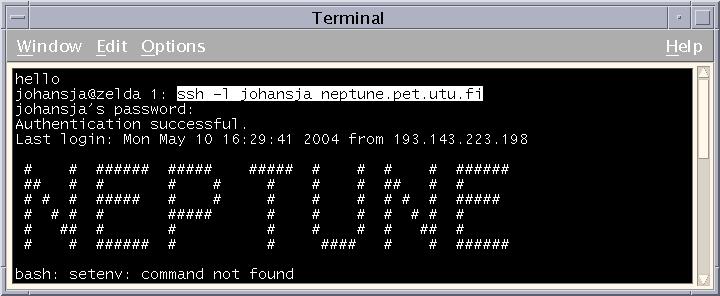 |
Connecting to remote host with ssh. |
3. Initiating a project at CVS server
After you have a working ssh connection to neptune you can start by copying (or moving) the directory tree containing all the files in some of your software project to neptune. Example project here is the reconstruction utilities library. The following screen capture shows the directory listing for the project to be added to version control.
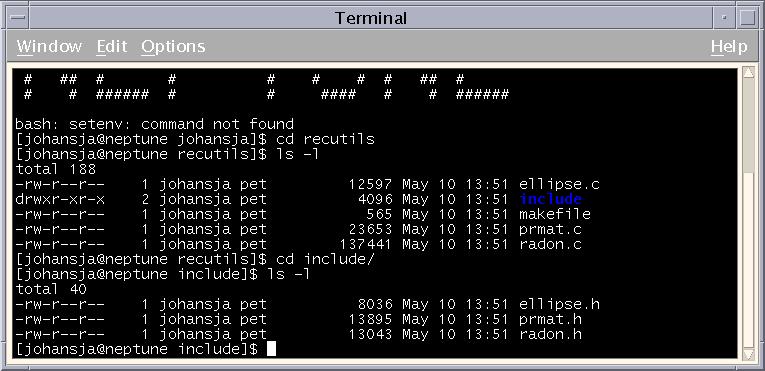 |
Original directory. |
Because renaming files and moving them between directories is somewhat inconvenient, the first thing you do before adding a project to version control should be to think through your file organization.
4. Setting up files inside the CVS repository
Now when we have the software project well initiated we should add it to version control. Practically this means setting up files included in the project inside the CVS repository. The CVS repository is placed in /usr/local/cvsroot but there shouldn't be any need to access this directory while updating the project.
Prototype of a CVS command is:
| cvs [cvs-options] command [command-options-and-arguments] |
To set up the repository for our example project we will not use cvs-options. The command for setting up a repository is import. There are numerous command-options, but we will use only option -m, which stands for log message, with text "Imported sources". The import command requires three arguments: target-directory, vendor-tag and release-tag, the last two arguments fill no purpose in this context but they must be present. Imported files in the project will be identified by target-directory and it should contain the name the project e.g. recutils/. CVS command for setting up the files in the example project inside the repository is:
| cvs import -m "Imported sources" c/recutils/ pet start |
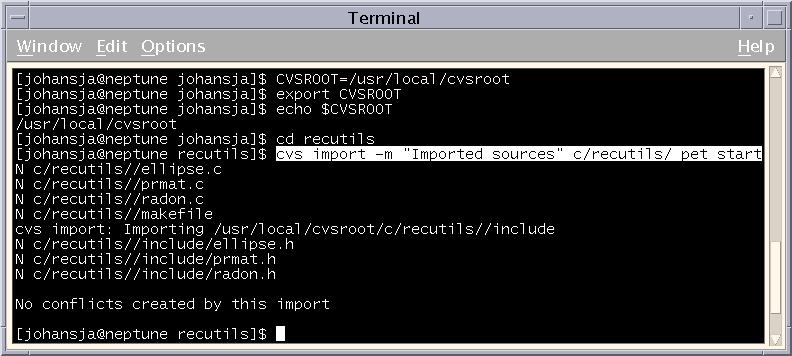 |
Setting up the repository. |
In the future the CVSROOT environment variable is set automatically in the start up for every user.
5. Checking the repository
Now we should be able to export the project in any computer which has ssh client and cvs client. Let us first check that the files imported in the repository and then exported back are not corrupted.
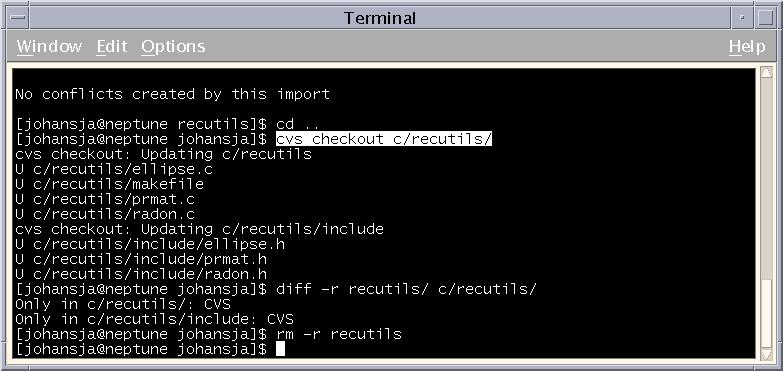 |
Checking the repository. |
CVS command checkout requires one parameter; the name of the directory to be checked out. The checkout command with no additional options or arguments copies the files in the newest version of the project to the current directory. Unix command diff displays line-by-line differences between pairs of text files. As seen above the only difference between the original directory and the one exported from CVS repository is in subdirectories called CVS, which include some CVS system files. Thus we can remove the original directory.
6. Committing your changes
Let us now modify some of the files in our project and update them to the repository.
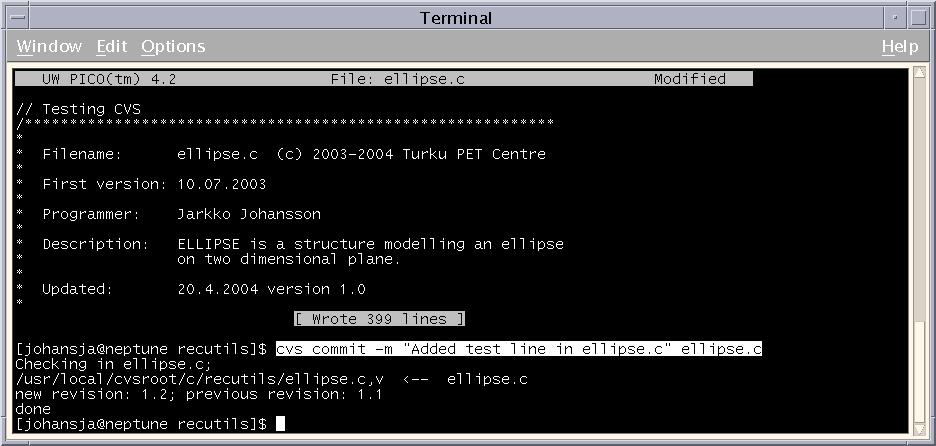 |
Committing the changes. |
The -m option is again used to write a log message.
7. Cleaning up
Now when we have the newest version of the project safely in the CVS repository we may clean up the working directory. It is perfectly OK just to remove the working directory but CVS provides a more elegant way.
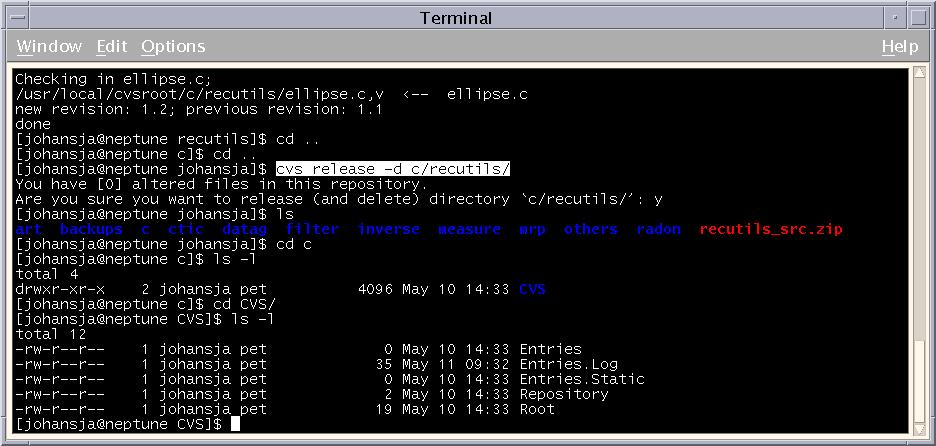 |
Cleaning up the working directory. |
The release command requires the name of the directory (project) to be released as an argument and option -d makes release command to remove the working directory. The release command leaves the CVS system file folder in the working directory but it can be removed by hand if wanted.
8. Using remote repository
Your working copy of the sources can be on a different machine than the repository. Using CVS in this manner is known as client/server operation. You run CVS on a machine which can mount your working directory, known as the client, and tell it to communicate to a machine which can mount the repository, known as the server. By default CVS client uses rsh to communicate with the server, but the only accepted protocol for communicating with our CVS server is ssh.
8.1 In UNIX/Linux
The required CVS client for UNIX/Linux can be downloaded for free from CVS Downloads.
In UNIX/Linux CVS user may define the CVS_RSH environment variable to invoke another program which can access the remote server, in our case ssh.
I have installed ssh and cvs clients in my home computer running on Linux Redhat 7.3, and I should be now able to checkout and commit our example project from the CVS server of TCP.
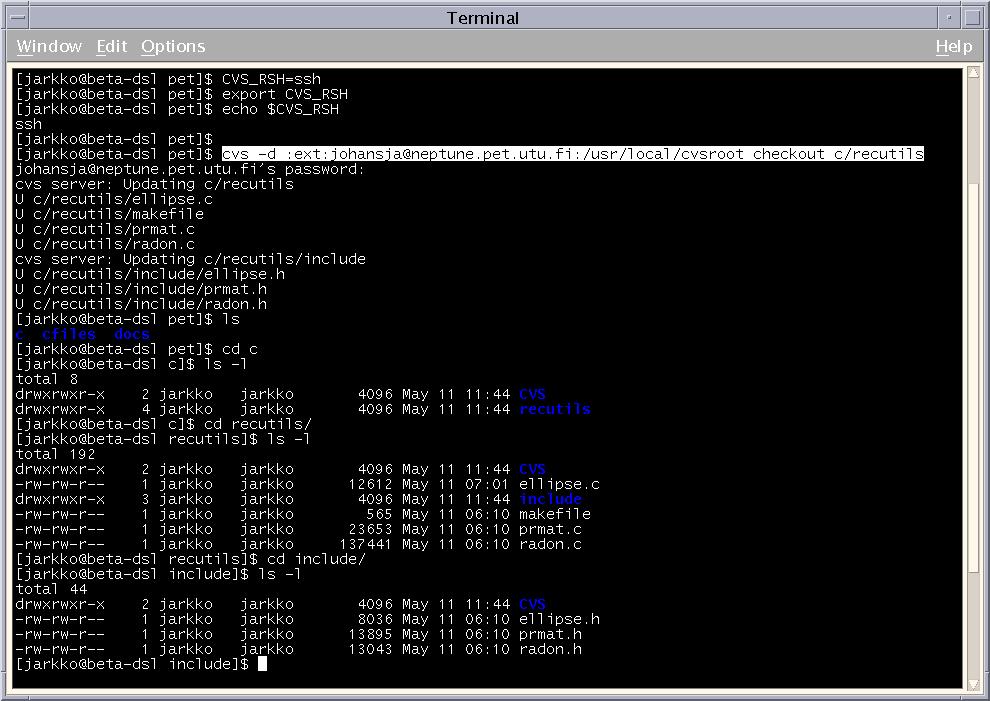 |
Checking out a repository from remote server. |
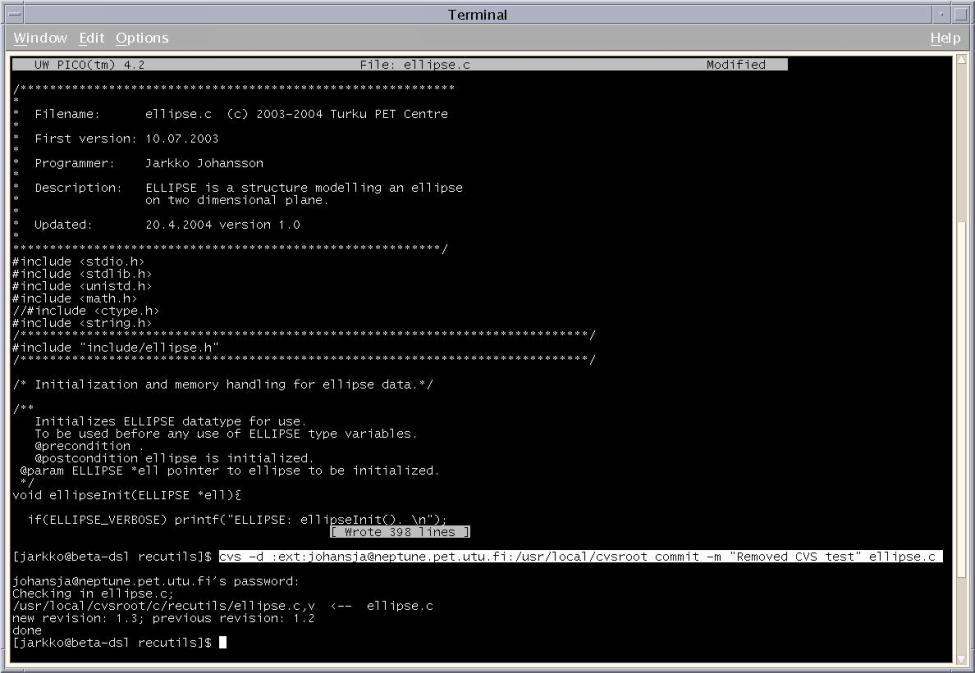 |
Commintting changes to remote server. |
Option -d overrides the environment variable CVSROOT if it set. Assuming that a user is always using a remote repository, neptune's /usr/local/cvsroot for example, a more sophisticated way would be to set the CVS_RSH and CVSROOT environment variables in a start up file automatically. To set CVS_RSH and CVSROOT, csh and tcsh users should have these lines in their `.cshrc.personal' or `.tcshrc.personal' files:
| setenv CVS_RSH ssh |
| setenv CVSROOT /usr/local/cvsroot |
sh and bash users should instead have these lines in their `.profile' or `.bashrc':
| CVS_RSH=ssh |
| export CVS_RSH |
| CVSROOT=/usr/local/cvsroot |
| export CVSROOT |
8.2 In Windows
I have also tested a Windows client cvsnt in Windows 2000 at home, the cvsnt client can be downloaded for free from CVSNT Wiki. (I had to install the full version to get it running allthough I will use the remote repository in neptune.) Check also wincvs for GUI and more.
A. Epilogue
Obviously this document is only an introduction to usage of CVS in Turku PET Centre, and it doesn't give answers to all questions in version controlling. The official home page of the CVS project is very informative and recommended reading for everyone who is going to use the CVS. There are also many other pages devoted to CVS, for Windows users I can recommend cvsnt home page. If you can't solve the problems in setting up the system in your remote workstation, try harder, if it doesn't help send email to me (jarjoh@utu.fi) and we can try together...
B. List of repositories
The following "c" directories are currently in version control and they should be accessible to everyone in the same user group, name of the directory is c/< project >. In addition there is one "m" directory containing all the MATLAB codes I have at TPC; name of the directory is m/all/.
| drwxrwxr-x 2 johansja pet 4096 May 11 14:43 amirfit |
| drwxrwxr-x 2 johansja pet 4096 May 11 15:07 art |
| drwxrwxr-x 2 johansja pet 4096 May 11 14:36 ctic |
| drwxrwxr-x 2 johansja pet 4096 May 11 14:38 ctifilter |
| drwxrwxr-x 2 johansja pet 4096 May 11 14:39 ctimeasure |
| drwxrwxr-x 2 johansja pet 4096 May 11 14:41 ctimrp |
| drwxrwxr-x 2 johansja pet 4096 May 11 14:37 datagen |
| drwxrwxr-x 3 johansja pet 4096 May 11 14:45 dicom2cti |
| drwxrwxr-x 2 johansja pet 4096 May 11 14:48 dicomanon |
| drwxrwxr-x 2 johansja pet 4096 May 11 14:39 inverse |
| drwxrwxr-x 2 johansja pet 4096 May 11 14:52 radon |
| drwxrwxr-x 3 johansja pet 4096 May 11 10:58 recutils |
| drwxrwxr-x 2 johansja pet 4096 May 11 14:48 reduce |
| drwxrwxr-x 2 johansja pet 4096 May 11 14:49 reslice |
| drwxrwxr-x 2 johansja pet 4096 May 11 14:50 transform |
email: jarjoh[at]utu.fi
Last modified: Sun Jul 11 23:32:27 EEST 2004